
Cleaning and team, every shift to the right person at the right time
Schedule cleaning and jobs with one tap and assign them to the people who work with you. Everyone sees only their part, and you know when each thing is done.
Try free for 14 days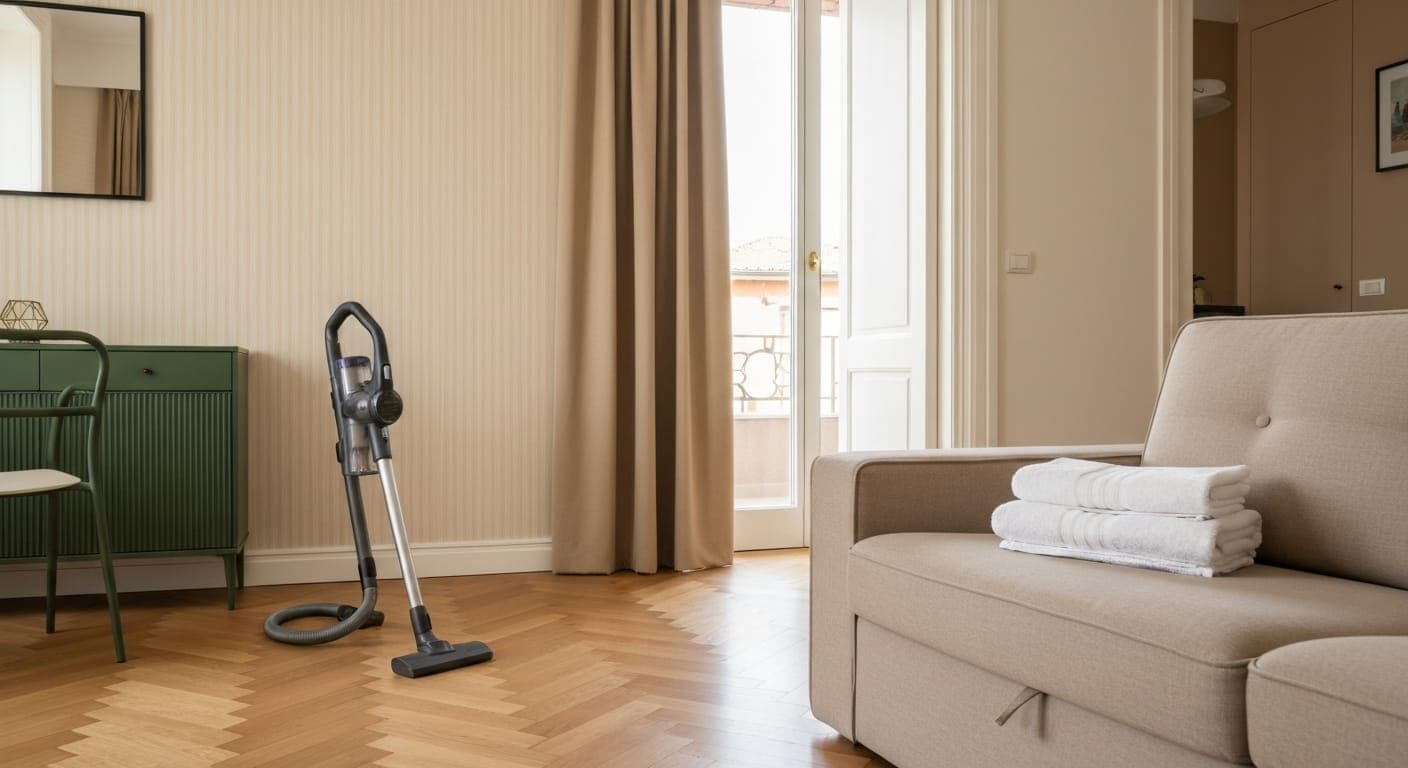
At a glance
Checked against the product on 17 October 2026.
- Plans
- Check-in, PRO and ULTRA
- Free roles
- Cleaning and accountant, on every plan
- Paid roles
- Account owner and manager, with 1 included and then €3 a month
What are Cleaning and team?
Schedule cleaning with one tap, from the stay page or the Cleaning module. If you'd rather not think about it, switch on automatic cleaning for the property, so a shift appears in the Cleaning module at every check-out, and if the stay changes dates or is cancelled the cleaning updates itself. Then assign it to someone on your team.
Anyone with the Cleaning role only gets into the Cleaning section, read-only. They see the properties' shifts and instructions, not bookings, revenue, costs or guest contacts. When the job's done, you mark the shift as completed.
What you get with Cleaning and team
- Automatic cleaning at every check-out, if you turn it on for the property
- Shift assigned to a team member with one tap
- Limited access by role, across cleaning, accountant and manager
- Instructions for every property, such as keys, codes and where the linen goes
- Cleaning and laundry in the same calendar, per property and per room
- Cost of every cleaning in your expenses, visible only to you
What you stop doing with Cleaning and team
Coordinating cleaning in unmanageable WhatsApp groupsShowing revenue and guest details to your cleanersForgetting a clean or getting it done twiceChecking every day which properties need cleaning
How Cleaning and team works
Invite your team
An email to each person with their role, whether cleaning, accountant or manager. They sign up on their own.
Plan the cleaning
With one tap from the stay page, or switch on automatic cleaning for the property and at every check-out the shift appears by itself in the Cleaning module.
Assign and instruct
Choose who does the shift and add notes for that property, for example “change the vacuum filters”.
The team sees, you sign off
Cleaners see shifts read-only. When the job's done, you mark the shift as completed.
Frequently asked questions about Cleaning and team
All answersYes, you assign each shift to whoever you want. Anyone with the Cleaning role does, however, see the Cleaning section for the whole organisation, because for now the view can't be limited to certain properties.
No. Cleaning and accountant are never paid members, and you add them for free on any plan. You only pay for the account owner and manager roles, with 1 included on Check-in and PRO and then €3 a month each, while on ULTRA they're unlimited.
No, Doorling isn't HR software. It tracks the shifts completed, then you pay your team as agreed, whether freelance, as contractors or as employees, with your accountant.
No, the Cleaning role is read-only. They see shifts and instructions, not costs, and shifts and completions are managed by you or anyone with the manager role.
Related features

Multi-channel calendar
One calendar for every portal, so two guests never end up booked on the same night.
Multi-property
All your properties in the same dashboard, with filters to see one property or the whole lot.

Expense management
Log every expense and see what you really earn on each property, with no spreadsheets.
Try Cleaning and team on Doorling, free.
You get a 14-day trial and you are up and running in two minutes.
Explore all features
Compliance and regulations
Daily operations